The Use-Case Model
Last updated:
May 10, 2006
Objectives: After completing this module, you'll be able to
-
Describe a use-case model, its components, and its importance.
-
Explain what is used to create use-case diagrams in Rose.
-
Use the Rose tool to create a use-case diagram to clearly illustrate what
the system will do.
-
Use the Rose tool to create an activity diagram to visually illustrate a use
case's flow of events.
The Use-Case Model:
-
Is created in the Use-Case View of
Rose.
-
Is a model of the system's intended
functions and its environment.
-
Serves as a contract between customer
and developer.
-
Is essential to analysis and design
and test activities.
-
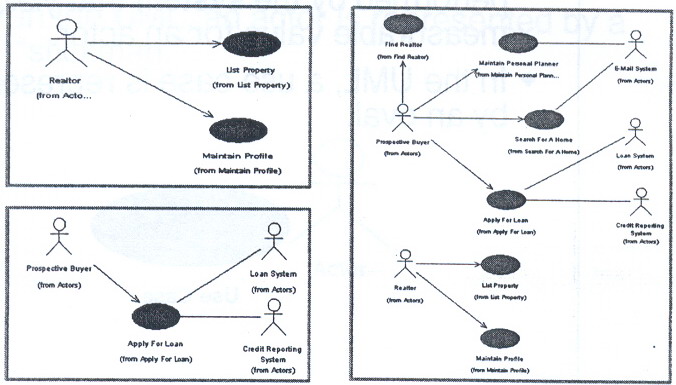
Can include use-case diagrams,
use-case flow of events, supplemental information, and activity diagrams.
-
Is created using artifacts developed
by the software architect and system analysts in concert with the customer.
An artifact is information produced, modified, or used by a process. It
defines and area of responsibility and is subject to version control. An
artifact can be a model, a model element, or documentation.
Use-Case Diagrams
Flow of Events:
-
In Rose, you include each use case's
flow of events in the Use-Case View.
-
A flow of events is included under its
use-case package in Rose and can be accessed directly from Rose once it's
attached.
Artifacts:
-
Can be both input and output artifacts
depending on the activity.
-
Are important to the use-case model
and should be attached to the model in Rose. These documents may include the
glossary, vision, stakeholder requests, business use-case model, and so on.
-
Can be accessed directly from Rose
once they're attached.
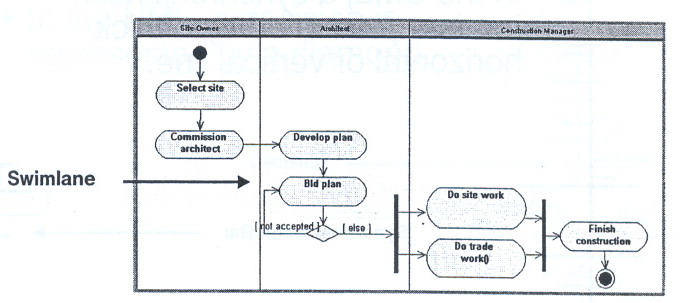
Activity Diagrams:
-
Activity diagrams can also be used in
business modeling and to model the workings of an operation, an object, or
anything that involves modeling the sequential steps in a computational
process.
-
Activity diagrams represent the
dynamics of the system.
-
Activity diagrams are not required.
Some prefer its textual counterpart, the flow of events. It's up to you
whether you create them to illustrate the workflow of a use case.
-
Transitions can be labeled with
events, guard conditions, or actions using the transition's Specification
window in Rose.
-
Swimlanes:
-
Each swimlane should represent a
responsibility for part of the overall workflow, carried by a part of
the organization. A swimlane may eventually be implemented by an
organization unit or a set of classes in the business object model.
-
The relative ordering of swimlanes
has no semantic significance. Each activity is assigned to one swimlane
and transitions may cross lanes.
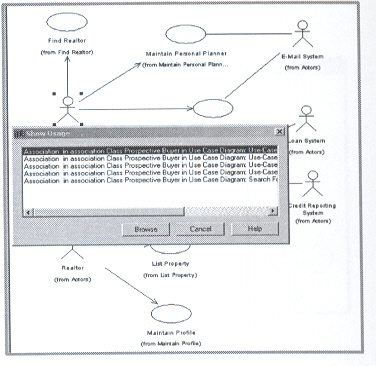
Reports:
Create a Use-Case Diagram:
-
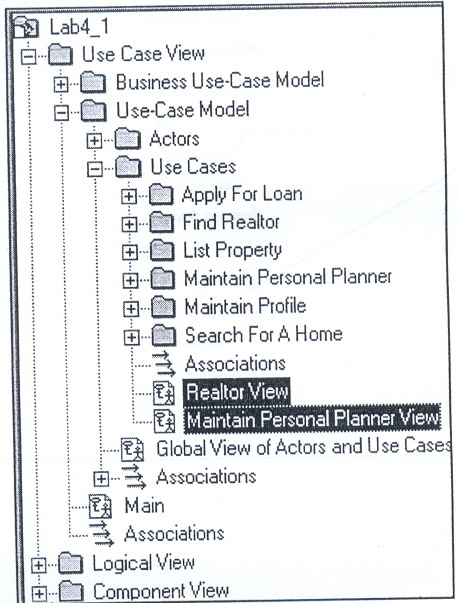
Add the Use-Case
Diagrams to the Browser:
-
Open Lab4_1.mdl
-
Expand Use Case
View -> Expand Use-Case Model
-
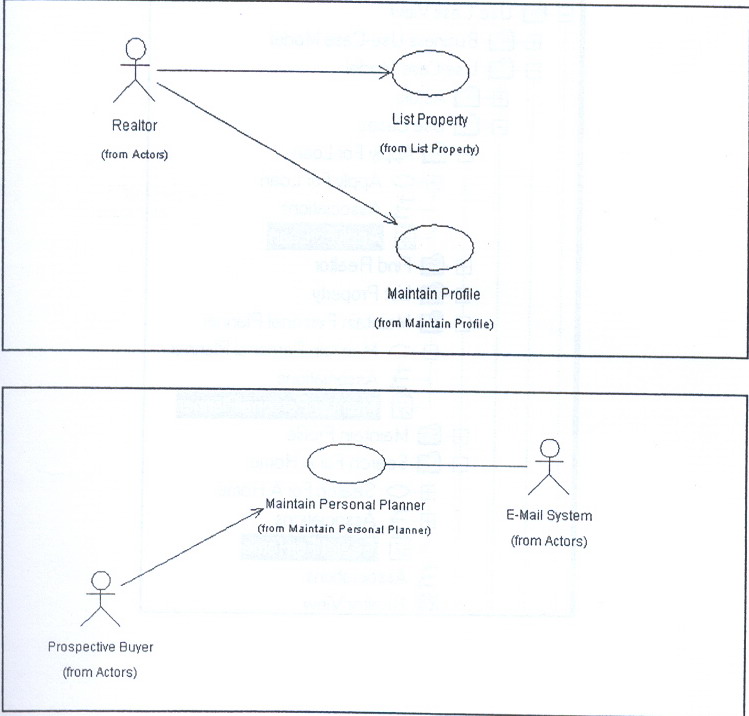
Create Realtor View for actor
Realtor
-
Create Maintain Personal Planner
View for use case Maintain Personal Planner.
-
Add the Actors and Use
Cases to Diagram:
-
Double-click Realtor View
-
Referencing the Global View of
Actors and Use Cases, determine the use cases associated with the
Realtor actor.
-
Drag the Realtor
actor and its use cases from the browser into the diagram window.
-
Similarly, add the actors and use
cases for Maintain Personal Planner View.
-
Add Use-Case Flow of
Events:
-
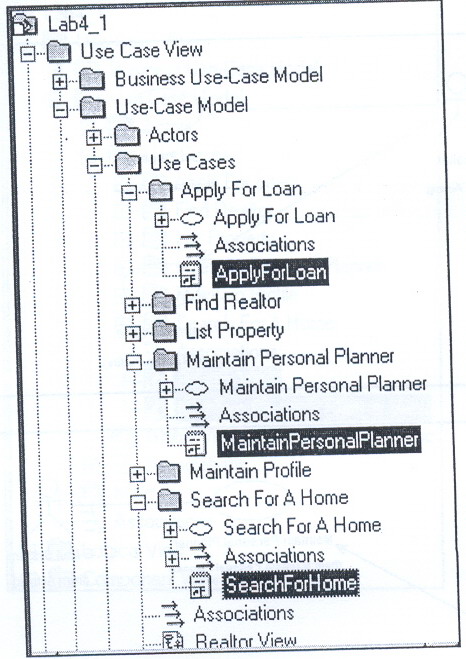
Right-click Apply for Loan ->
Select a New File
-
Select
ApplyForLoan.txt
-
Similarly, add MaintainPersonal
Planner.txt for Maintain Personal Planner; add SearchForHome.txt for
Search For A Home.
-
Add Project Artifact:
-
Add text to the documentation window
to describe one of your use-case diagrams.
-
Change the line and/or fill color of a
use case.
Create an Activity
Diagram:
-
Add Activity Diagram
to the Browser
-
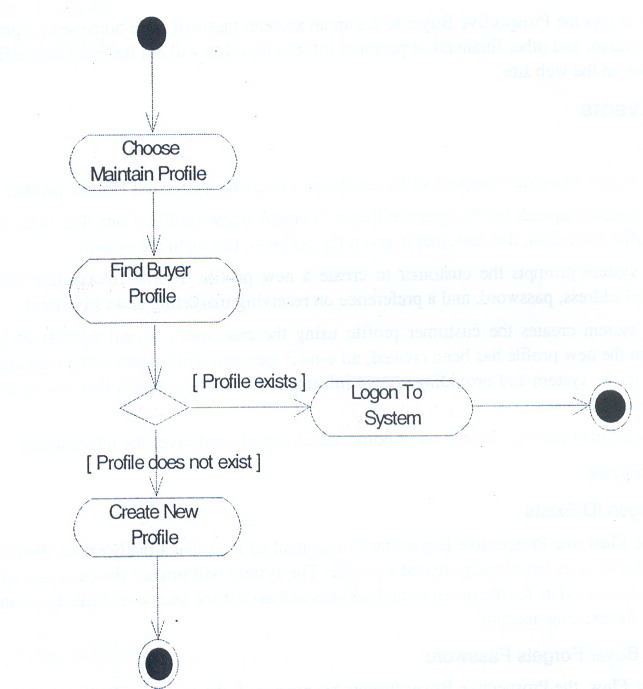
Add Activities, start
and End States, Transitions, Decisions, and Guard Conditions
-
Add the start state and end
state(s) to the diagram.
-
Add the
transitions, decisions, and guard conditions
-
For decisions: Add the decision
icon -> Add the transitions
-
For guard condition text: Open the
trasition's Specification Window ->d
-
To check your competed use-case
model : Open Lab4_2.mdl
-
Run the Show Usage
report on any element in a use-case or activity diagram: